
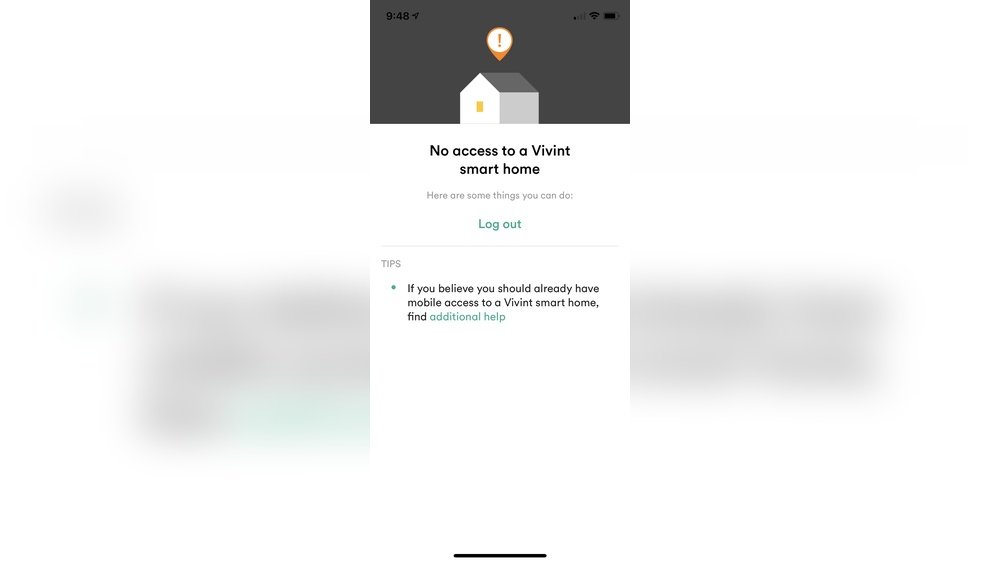
Smart homes are becoming more common. Many people use devices like smart lights, thermostats, and security cameras. These devices make life easier. But sometimes, they stop working. When this happens, you might see an error message. To fix the problem, you need to read the error logs.
Error logs are records of problems. They tell you what went wrong. Reading these logs helps you find the issue. Then, you can fix it or tell a technician what to do.
What Are Smart Home Error Logs?
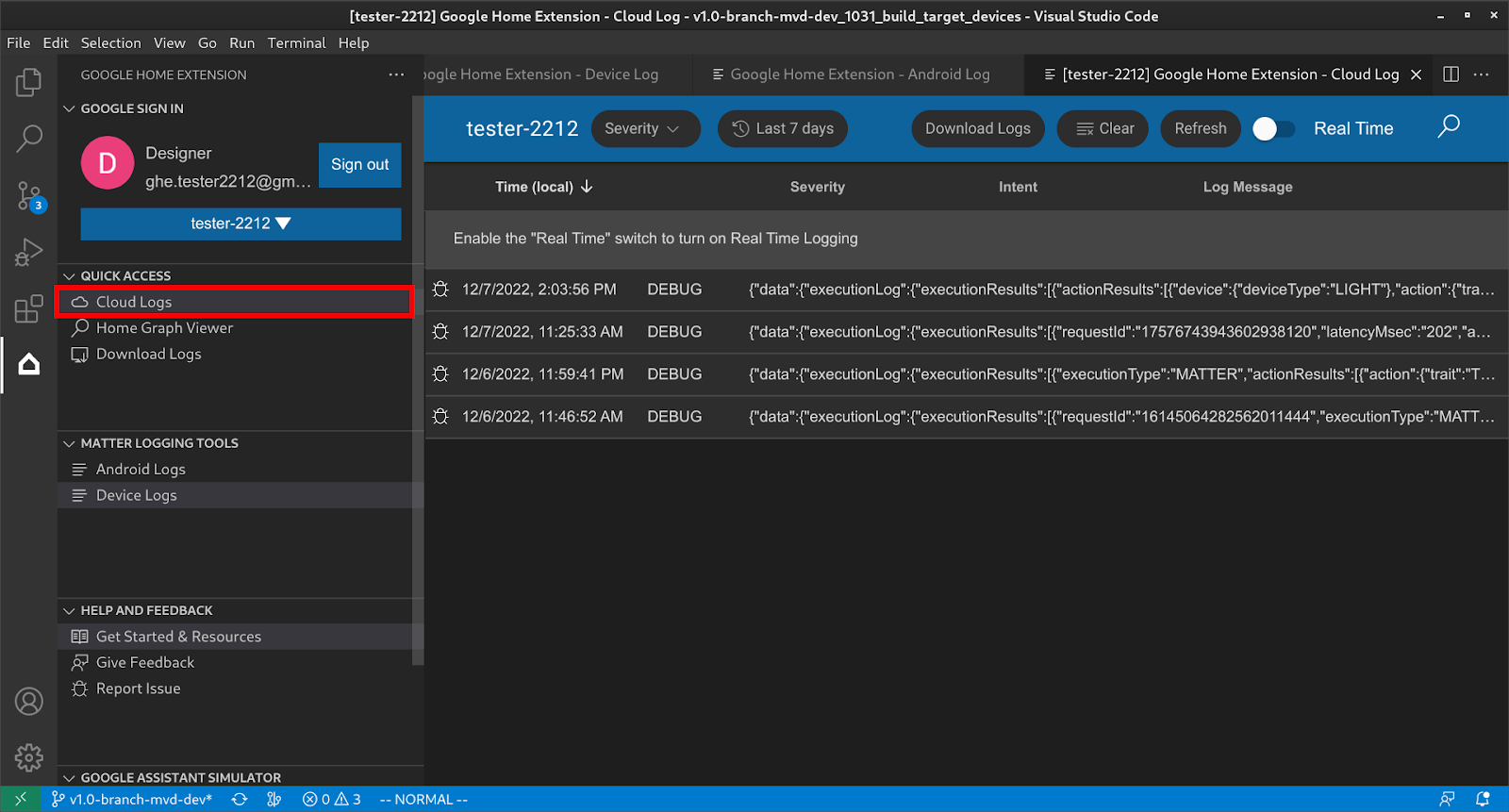
Every smart device keeps a list of errors. This list is the error log. It shows when and what problems happened. Error logs can tell you if a device failed to connect or if a setting is wrong.
Logs are usually simple text files or lists inside an app. You can see them on your phone, tablet, or computer. Sometimes, the error messages use codes or short words. This can be confusing at first.
Credit: duo.com
Why Read Error Logs?
When a device stops working, it might not tell you why. Error logs give more details. They help you:
- Understand the problem
- Find which device has an issue
- Fix small problems yourself
- Explain the problem clearly to a technician
Without reading the logs, you might guess and try many fixes. This wastes time and can cause frustration.
Where to Find Smart Home Error Logs
Each smart home system is different. But error logs are usually in one of these places:
- Device App: Most smart devices have an app. Open the app and look for “Logs,” “History,” or “Errors.”
- Smart Home Hub: If you use a hub like SmartThings or Home Assistant, check its dashboard or settings.
- Web Portal: Some devices let you log in on a website to see logs.
- Device Screen: A few devices show errors on a small screen or display.
If you do not know where to find logs, check the device manual. Or search online with the device name and “error logs.”
How to Read Error Logs Step by Step
Reading error logs can seem hard. Follow these simple steps to understand them:
Step 1: Open The Log
Go to the app or hub and find the error log section. Open it and look at the list of errors.
Step 2: Look For Recent Errors
Focus on the newest errors. They usually show the current problem. Older errors might not matter now.
Step 3: Read The Error Message
Each error has a short message or code. For example, it might say “Connection Timeout” or “Error 101.”
Step 4: Understand The Message
Try to understand what the message means. If it is not clear, write it down or take a screenshot.
Step 5: Use A Guide Or Search Online
Many devices have a list of common error codes. Check the manual or the company’s website. You can also search the error code online. Many forums and help sites explain common errors.
Step 6: Check The Time And Device
Look at when the error happened. See which device caused it. This helps you find the exact problem.
Step 7: Take Action
Once you understand the error, try simple fixes. For example:
- Restart the device
- Check the Wi-Fi connection
- Update the device’s software
- Reset the device to factory settings
If you cannot fix it, share the error details with a technician.
Credit: developers.home.google.com
Common Smart Home Error Messages
Here are some common error messages you may see. Knowing these helps you act fast.
| Error Message | What It Means | What to Do |
|---|---|---|
| Connection Timeout | The device cannot connect to the network. | Check Wi-Fi. Restart router and device. |
| Authentication Failed | The device failed to log in to the server. | Check username/password. Re-enter credentials. |
| Firmware Update Failed | The device could not update software. | Try updating again. Ensure stable Wi-Fi. |
| Device Offline | The device is not connected or powered off. | Check power. Restart device. |
| Error Code 101 | General communication error. | Restart device and app. Check network. |
Tips to Make Reading Logs Easier
- Keep a Notebook: Write down errors and fixes tried.
- Use Simple Language: Translate technical words to easy words.
- Take Screenshots: Save error messages for later help.
- Ask for Help: Use online forums or friends.
- Update Devices: Many errors happen due to old software.
When to Get Professional Help
Some problems are hard to fix alone. If errors repeat or devices still do not work, call a technician.
Give them the error logs and messages. This saves time and helps them solve the problem faster.
Final Thoughts
Reading smart home error logs is useful. It helps you find problems and fix them quickly. Start by finding the logs in your app or device. Look for recent errors and understand the messages. Use guides or online help if needed. Try simple fixes. If not, ask for professional help.
With practice, reading error logs will be easier. You will feel more confident managing your smart home devices.
Frequently Asked Questions
What Are Smart Home Error Logs Used For?
Smart home error logs help track device problems and system faults. They record errors to help you fix issues fast.
How Can I Access My Smart Home Error Logs?
Most smart home apps or devices have a section for logs. Check the app’s settings or device dashboard to find them.
What Do Common Error Codes Mean In Smart Home Logs?
Error codes show specific problems, like connection or sensor errors. Look up codes in your device manual or online guide.
How Often Should I Check Smart Home Error Logs?
Check logs regularly, especially after device issues or updates. Frequent checks help catch problems early.