

Smart home devices make life easier. They turn lights on, adjust thermostats, and keep your home safe. But sometimes, these devices stop working. They lose connection or do not respond. This can be very frustrating.
Don’t worry. Most smart home problems have simple fixes. In this guide, we explain easy ways to troubleshoot common smart home connectivity issues. You can try these steps yourself, even if you are not a tech expert.
Credit: www.smartsystechnology.com
Why Do Smart Home Devices Lose Connection?
Smart devices connect to your home network. Usually, this is through Wi-Fi or sometimes Bluetooth. The connection can break for many reasons:
- Weak Wi-Fi signal
- Router problems
- Device software issues
- Too many devices on the network
- Interference from other electronics
Knowing the cause helps fix the problem faster.
Step 1: Check Your Wi-Fi Signal
Most smart devices use Wi-Fi to connect. If the Wi-Fi signal is weak, devices may lose connection.
Here is what you can do:
- Move closer to the router. See if the device works better.
- Check the Wi-Fi signal strength on your phone or tablet.
- Try restarting your router. Unplug it, wait 30 seconds, then plug it back in.
If the signal is weak, you may need to move your router to a central place. Avoid hiding it in a cabinet or behind furniture.
Step 2: Restart Your Smart Device
Many problems fix after a simple restart. This clears small errors in the device.
To restart:
- Turn off the device.
- Wait about 10 seconds.
- Turn it back on.
After restarting, check if it connects to Wi-Fi again.
Step 3: Check Your Router Settings
Sometimes, the router settings block smart devices from connecting. Here is what to check:
- Make sure your router allows new devices to connect.
- Check if MAC address filtering is on. If yes, add your device’s MAC address.
- Verify the router’s firmware is updated.
- Look for any parental controls that may block devices.
You can log in to your router’s admin page to check these settings. Use the router’s manual to learn how.
Step 4: Update Device Software
Smart devices need software updates to work well. Updates fix bugs and improve connection.
To update your device:
- Open the device’s app on your phone.
- Look for update notifications.
- Follow instructions to install updates.
If you do not update, devices may stop working correctly.
Step 5: Reduce Network Traffic
Too many devices using your Wi-Fi can slow it down. Slow Wi-Fi can cause smart devices to disconnect.
Try this:
- Disconnect devices that are not in use.
- Limit high-data activities like streaming or gaming when using smart devices.
- Consider upgrading your internet plan if many devices use Wi-Fi.
Step 6: Check for Interference
Other electronics can cause interference. Microwave ovens, cordless phones, and baby monitors use similar signals.
To reduce interference:
- Keep your smart devices away from these electronics.
- Change the Wi-Fi channel on your router to a less crowded one.
- Try using a 5 GHz Wi-Fi band instead of 2.4 GHz if your router supports it.
Step 7: Reset Your Device to Factory Settings
If nothing works, reset your smart device. This removes all settings and starts fresh.
Be careful:
- You will lose saved settings and data.
- Make sure you know how to set up the device again.
Check the device manual for reset instructions. Usually, you press and hold a button for several seconds.
Step 8: Check Your Internet Connection
Smart devices need internet to work fully. If your internet is down, devices may lose connection.
Steps to check internet:
- Try opening a website on your phone or computer.
- If it does not load, contact your internet provider.
- Restart your modem and router.
Step 9: Use a Smart Home Hub
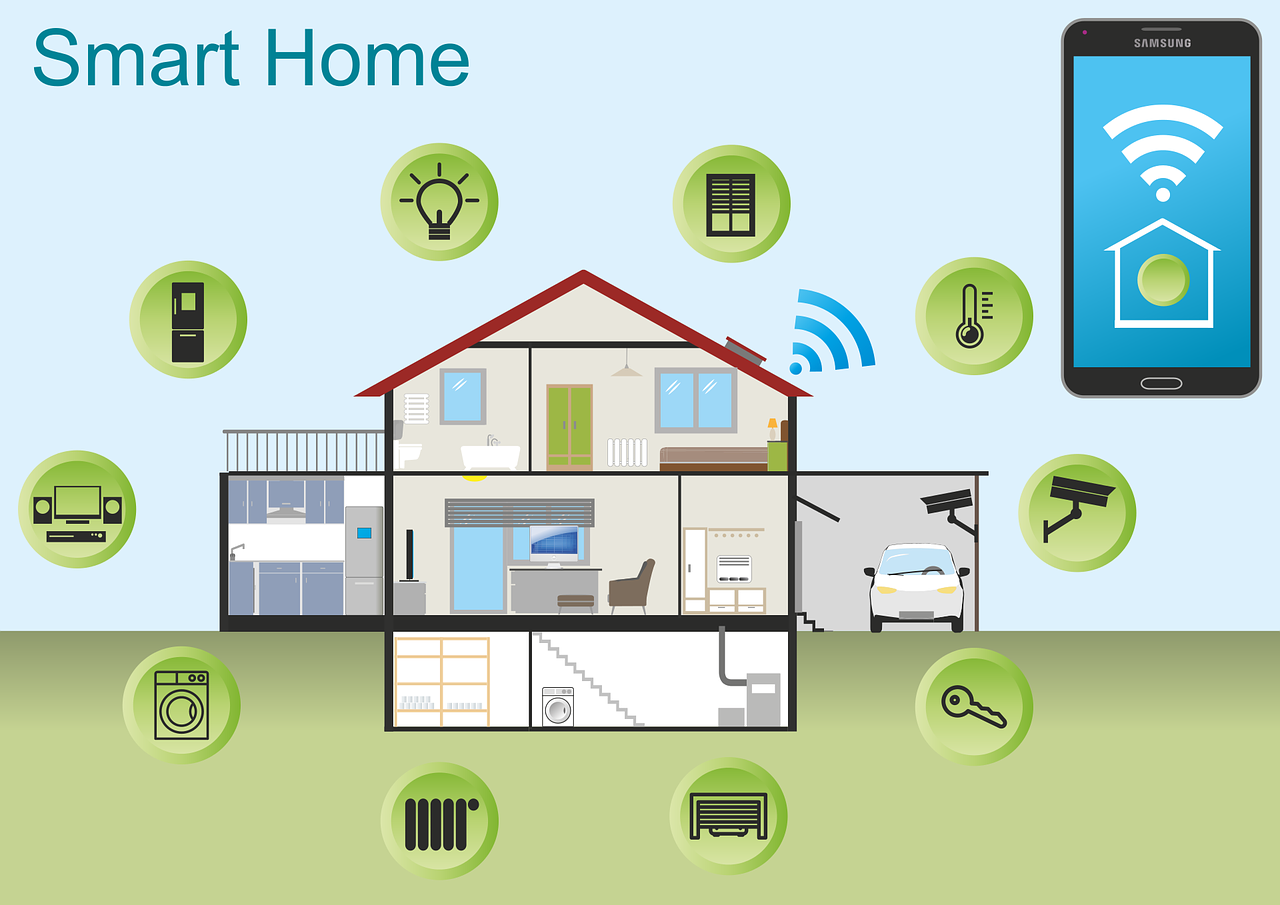
If you have many smart devices, a hub can help. It connects all devices to one place.
A hub can:
- Make devices communicate better.
- Reduce connection drops.
- Help with device setup and control.
Credit: nordutch.com
Step 10: Contact Customer Support
If you still have problems, contact the device maker’s support. They can give you advice for your specific device.
Have this ready:
- Device model and version
- What steps you already tried
- Error messages you see
Customer support can guide you through more advanced fixes.
Summary Table of Troubleshooting Steps
| Problem | What to Do |
|---|---|
| Weak Wi-Fi Signal | Move closer to router, restart router, reposition router |
| Device Not Responding | Restart device, update software, reset device if needed |
| Router Blocking Device | Check router settings, allow new devices, disable filters |
| Too Many Devices | Disconnect unused devices, limit heavy internet use |
| Interference | Move device away from other electronics, change Wi-Fi channel |
| Internet Down | Check internet, restart modem/router, contact provider |
Final Tips
Keep your devices updated and your router in a good spot. Check connections regularly. This helps avoid many problems.
Smart home technology is helpful. But it needs care. With these tips, you can fix most connection issues quickly.
Don’t give up if things go wrong. Troubleshooting is part of smart living.
Frequently Asked Questions
Why Is My Smart Home Device Not Connecting To Wi-fi?
Smart devices may fail to connect due to weak Wi-Fi signals or wrong passwords. Check your router and ensure the device is within range.
How Do I Reset My Smart Home Device For Better Connectivity?
Resetting often fixes connection problems. Press the reset button on your device, or follow the manual instructions.
Can Wi-fi Interference Cause Smart Home Connection Issues?
Yes, interference from other electronics can disrupt signals. Move devices away from microwaves or cordless phones.
What Role Does Router Placement Play In Smart Home Connectivity?
Router placement affects signal strength. Place your router in a central, open spot for best coverage.