
Smart home devices make life easier. They help with lights, thermostats, cameras, and more. But first, you need to connect them to your WiFi. This guide will show you how to do that in simple steps.
What You Need Before You Start
- A working WiFi network at home
- The smart device you want to connect
- A smartphone, tablet, or computer
- The app for your smart device (usually free)
- Your WiFi network name (SSID) and password
Make sure your WiFi is working well before you begin. If your signal is weak, the device might not connect.
Step 1: Prepare Your Smart Device
First, read the instructions that came with your smart device. Some devices need you to press a button to start setup mode. Others turn on setup mode automatically when you power them on for the first time.
Usually, the device will have a light blinking when it is ready to connect. This means it is in setup mode.
Step 2: Download the Device App
Most smart home devices use an app to connect to WiFi. Find the app in your phone’s app store. It might be called the brand name or something related to the device.
Download and install the app. Open it and create an account if needed. This lets you control your device from your phone.
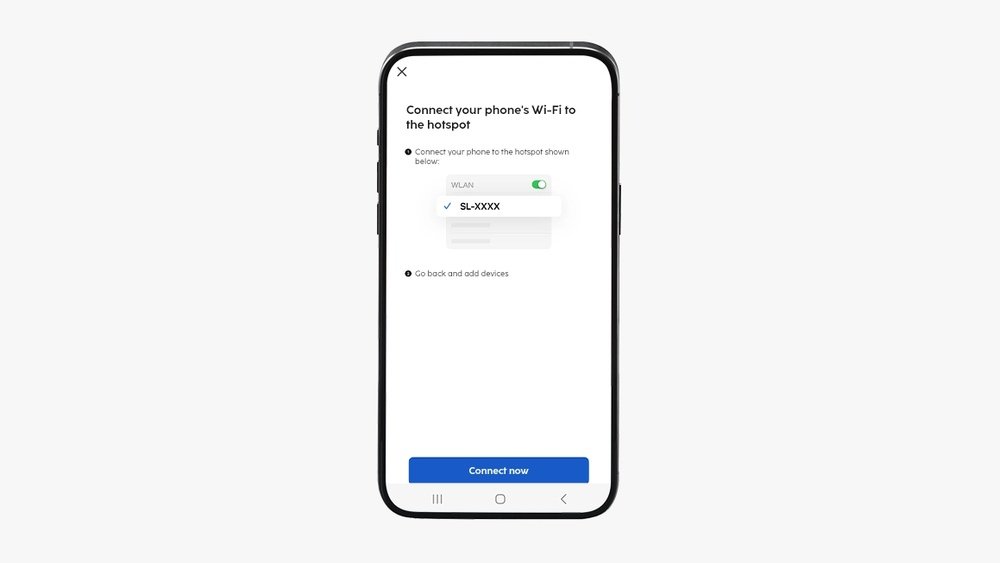
Step 3: Connect Your Phone to Your Home WiFi
Make sure your phone is connected to the same WiFi network you want your device to use. This is important because the device will copy these settings.
If your WiFi has two bands (2.4 GHz and 5 GHz), choose the 2.4 GHz band. Many smart devices only work with 2.4 GHz.
Step 4: Add Your Device in the App
Open the app and look for a button like “Add Device” or “Set Up New Device.” Tap it. The app will ask you to follow steps to find your device.
The app might ask you to scan a QR code on the device or enter a code. This links the app to the device.
Step 5: Enter Your WiFi Details
Next, the app will ask for your WiFi name and password. Enter them carefully. The device uses this information to join your network.
If you enter the wrong password, the device will not connect. Double-check before you continue.
Step 6: Wait for the Device to Connect
After entering your WiFi details, the device will try to connect. This can take a few seconds or minutes.
Watch the device light or the app for confirmation. Usually, a steady light means it is connected.

Credit: www.youtube.com
Step 7: Test Your Device
Once connected, try using your device with the app. Turn it on or off, change settings, or check its status.
If it works, you are done. If not, repeat the steps or check for problems.

Credit: developers.home.google.com
Troubleshooting Common Issues
Sometimes, connection problems happen. Here are some tips to fix them.
| Problem | Possible Fix |
|---|---|
| Device does not enter setup mode | Restart the device. Press and hold the setup button longer. |
| App cannot find the device | Make sure your phone and device are close. Restart the app. |
| Device fails to connect to WiFi | Check WiFi password. Use 2.4 GHz band if possible. |
| WiFi signal is weak | Move device closer to router or use a WiFi extender. |
| App says device offline | Restart device and phone. Check router settings. |
Tips for a Better Connection
- Keep your device and phone close to the router during setup.
- Use strong passwords for your WiFi to keep it secure.
- Keep your device’s app updated for best performance.
- Restart your router if connection is slow or unstable.
- Check if the device has firmware updates after connection.
Why Connect Smart Devices to WiFi?
WiFi connection lets you control devices from anywhere. You can turn lights on before you get home. You can check security cameras on your phone. You can set your thermostat without walking to it.
WiFi also lets devices talk to each other. This can make your home smarter and more efficient.
What If You Have Multiple Smart Devices?
Each device needs to connect to your WiFi. You can add many devices using the same app or different apps, depending on the brand.
Make sure your router can handle many devices. Some routers slow down with too many connections.
If your home has many smart devices, consider upgrading your router or using a mesh WiFi system. This helps keep all devices connected smoothly.
Security Matters
Smart devices connect to your home network. This means they can be targets for hackers.
Use strong, unique passwords for your WiFi and device accounts. Change default passwords on devices. Keep apps and devices updated with the latest security patches.
Turn off devices you do not use. This reduces risk.
Summary
Connecting smart home devices to WiFi is simple if you follow the steps. Prepare your device, download the app, and enter your WiFi details. Wait for connection and test the device.
If you have problems, try the tips in the troubleshooting section. Always keep security in mind.
With your smart devices connected, you can enjoy a more comfortable, safe, and easy life.
Frequently Asked Questions
How Do I Connect Smart Home Devices To Wifi?
Start by turning on your device and opening its app. Follow the app’s instructions to find and join your WiFi network.
Why Won’t My Smart Device Connect To Wifi?
Check if your WiFi password is correct and if the device is in range. Restart your router and device to fix common issues.
Can I Connect Multiple Smart Devices To One Wifi?
Yes, most WiFi routers support many devices at once. Just ensure your network is strong and not overloaded.
What Wifi Frequency Is Best For Smart Devices?
Use 2. 4 GHz for better range and 5 GHz for faster speed. Many smart devices work best on 2. 4 GHz.