

Smart homes are becoming popular today. Many people use smart devices like lights, cameras, and speakers. These devices need a good internet connection. A slow or weak network can cause problems. You may see delays or devices not working well. This article shares simple tips to improve your smart home network. The goal is to make your devices work faster and better.
1. Use a Strong Wi-Fi Router
Your router is the heart of your smart home network. It sends internet signals to your devices. If your router is old or weak, your devices may have trouble connecting. Buy a good router that supports the latest Wi-Fi standards. Look for routers with Wi-Fi 5 (802.11ac) or Wi-Fi 6 (802.11ax). These routers handle many devices at once and offer faster speeds.
2. Place Your Router in a Central Spot
Where you put your router matters. Place it in the center of your home. This helps the signal reach all corners of your house. Avoid hiding the router inside cabinets or behind thick walls. Keep it high, like on a shelf or table. This way, your smart devices get a stronger Wi-Fi signal.
3. Reduce Signal Interference
Many things can block or weaken Wi-Fi signals. Microwaves, cordless phones, and baby monitors can cause interference. Keep your router away from these devices. Also, thick walls and metal objects reduce signal strength. Try to place your router where fewer obstacles exist.
4. Use Both 2.4 GHz and 5 GHz Bands
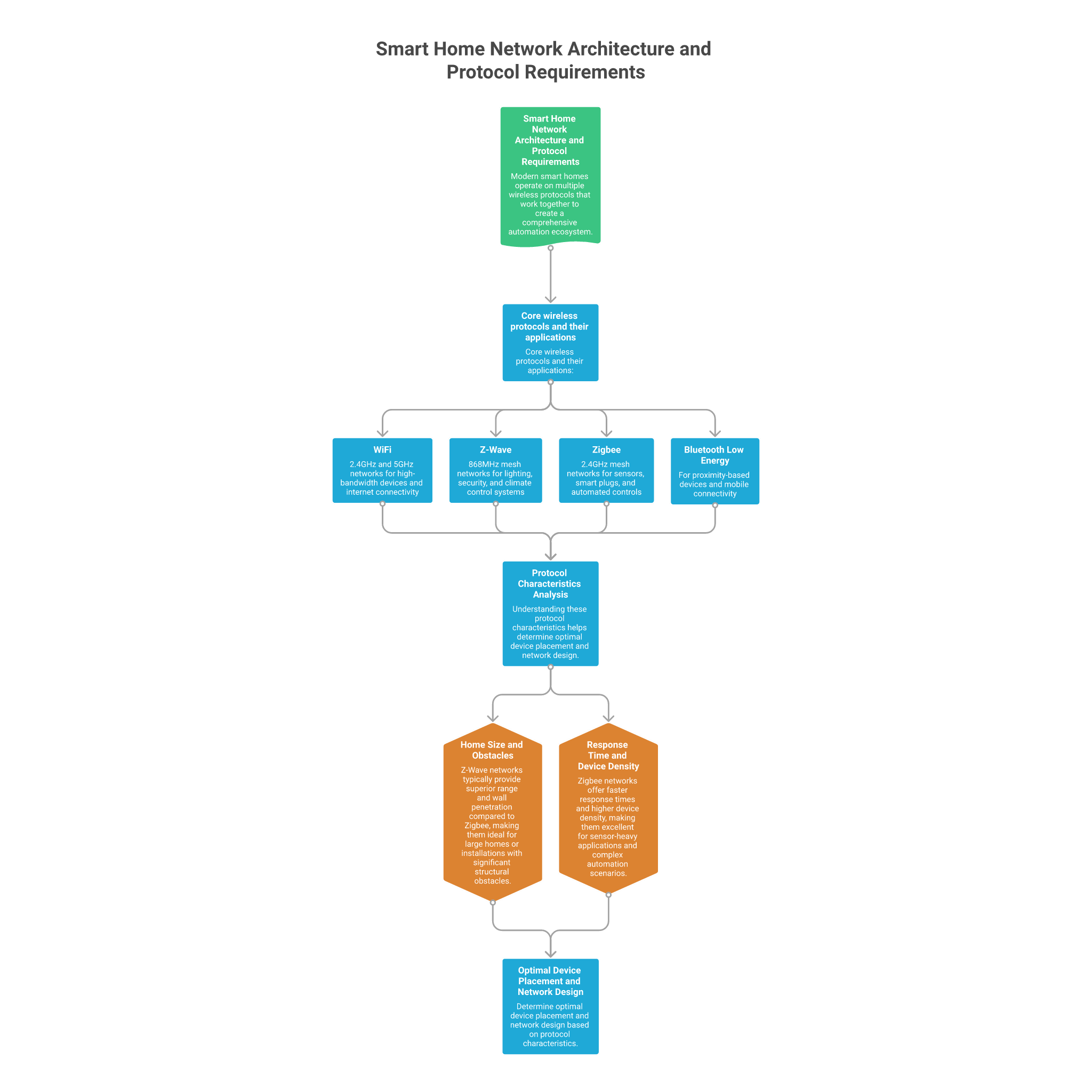
Modern routers have two frequency bands: 2.4 GHz and 5 GHz. Each band has pros and cons.
- 2.4 GHz: Covers longer distances but is slower.
- 5 GHz: Faster but covers a smaller area.
Use 2.4 GHz for devices far from the router. Use 5 GHz for devices close to the router. Many smart devices work only on 2.4 GHz, so check your device settings.
5. Keep Your Network Secure
Security is important for your smart home. Use a strong password for your Wi-Fi. Avoid simple passwords like “12345678” or “password.” Change the default router login details. This stops strangers from accessing your network. Also, update your router’s software regularly. Updates fix bugs and improve security.
6. Limit the Number of Connected Devices
Too many devices on one network can slow it down. Each device uses some bandwidth. If you have many smart devices, your network may get crowded. Disconnect devices you do not use. Also, turn off smart devices when not needed. This frees up space for important devices.
7. Use a Wired Connection When Possible
Wi-Fi is convenient, but wired connections are faster and more stable. Use Ethernet cables to connect devices like smart TVs or gaming consoles. A wired connection helps reduce delays and interruptions. If your router is far from some devices, consider this option.
8. Set Up a Mesh Wi-Fi System
Large homes may have Wi-Fi dead zones. These are areas with weak or no signal. A mesh Wi-Fi system uses multiple devices to spread Wi-Fi evenly. Mesh nodes connect to each other and create a strong network. This system covers all rooms without losing speed. It is a good choice for big houses.
9. Prioritize Important Devices
Some routers let you prioritize devices. This means important devices get better speed. For example, prioritize your smart security cameras or work laptop. This helps these devices work smoothly even when many devices connect at once.
10. Restart Your Router Regularly
Sometimes, routers slow down over time. Restarting your router fixes small problems. It clears memory and resets connections. Restart your router once a week for better performance. Simply unplug it, wait 10 seconds, and plug it back in.
Credit: www.nature.com
11. Update Your Smart Devices
Smart devices get software updates too. Updates fix bugs and improve speed. Check your devices regularly for updates. Install them when available. This keeps your devices running smoothly with your network.
12. Use a Wi-Fi Extender for Weak Spots
If you have areas with weak Wi-Fi, use a Wi-Fi extender. It boosts the signal to far rooms. Place the extender where your router’s signal is still strong. This helps improve coverage without buying a new router.
13. Avoid Using Public Wi-Fi for Smart Devices
Public Wi-Fi is not secure. Do not connect your smart devices to public networks. These networks can be slow or unsafe. Keep your smart home devices on your private home network only.
14. Check Your Internet Speed
Sometimes, slow smart devices are due to slow internet. Use online tools to test your internet speed. Compare the results with your internet plan. If the speed is low, contact your internet provider. Faster internet helps your smart home work better.
Credit: www.vesternet.com
Summary Table: Smart Home Network Tips
| Tip | Why It Helps |
|---|---|
| Use a Strong Router | Supports many devices with fast speeds |
| Place Router Centrally | Improves signal reach to all rooms |
| Reduce Interference | Prevents signal weakening from other devices |
| Use 2.4 GHz and 5 GHz | Balances range and speed for devices |
| Secure Your Network | Protects devices from unauthorized access |
| Limit Connected Devices | Prevents network congestion and slowdowns |
| Use Wired Connections | Provides stable and faster links |
| Set Up Mesh Wi-Fi | Eliminates Wi-Fi dead zones in large homes |
| Prioritize Devices | Ensures important devices get enough bandwidth |
| Restart Router Often | Fixes minor network issues quickly |
| Update Smart Devices | Keeps devices compatible and fast |
| Use Wi-Fi Extenders | Boosts signal in weak areas |
| Avoid Public Wi-Fi | Keeps your smart home safe |
| Check Internet Speed | Ensures your internet plan meets needs |
Final Thoughts
Smart home devices can make life easier. But they need good network performance. Follow these simple tips to improve your smart home network. A strong, secure, and fast network helps your devices work well. You will enjoy better control, faster responses, and fewer problems. Start with small changes. Over time, your smart home will feel smoother and more reliable.
Frequently Asked Questions
How Can I Improve My Smart Home Wi-fi Signal?
Place your router in a central, open spot. Avoid walls and metal objects blocking signals. Use Wi-Fi extenders for larger homes.
What Devices Slow Down A Smart Home Network?
Old gadgets and many devices using the same Wi-Fi can slow your network. Limit heavy data users during busy times.
Should I Use 2.4 Ghz Or 5 Ghz Wi-fi Band?
Use 2. 4 GHz for longer range and 5 GHz for faster speeds nearby. Choose based on device location and needs.
How Often Should I Update My Smart Home Router?
Update your router’s firmware every few months. Updates fix bugs and improve security and speed.